Broadband Speed Comparison That Actually Matches Your Life (Streaming, Gaming, Zoom)
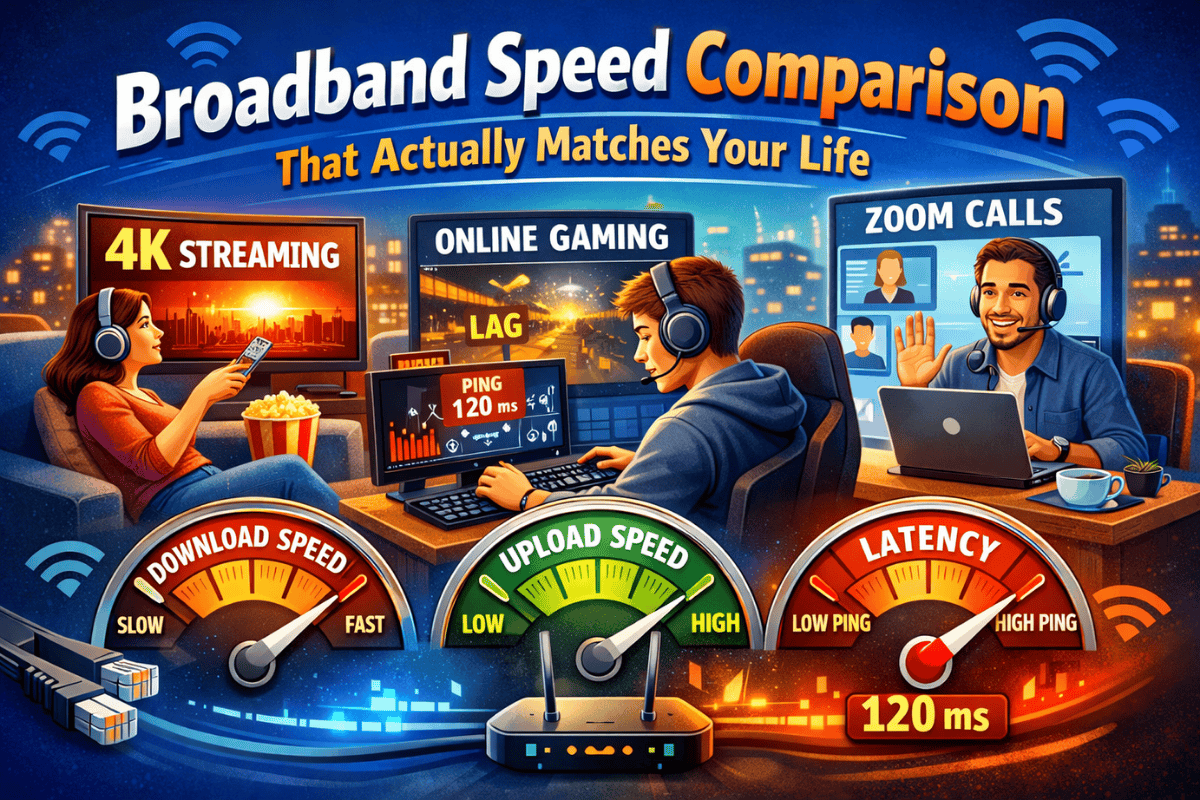
If you have ever paid for “fast broadband” and still watched Netflix buffer, had Zoom calls glitch, or lagged mid-game, you are not alone. Most people try to fix the problem by buying a bigger speed number, but then feel disappointed when the experience barely changes. That is exactly why a proper broadband speed comparison should match real life, not marketing.
In 2026, the right speed depends less on your household size and more on what you do at your busiest hour. Streaming in 4K, gaming, and video calls all stress your connection in different ways. Sometimes you genuinely need more Mbps. Other times, the real issue is WiFi speed vs broadband speed, router placement, or devices that cannot handle modern WiFi properly.
This guide will help you work out what Mbps do I need for your home, using plain-English ranges for streaming, gaming, and home working, plus quick ways to measure your real speeds and fix the most common causes of slow WiFi. If you want to test your current baseline first, you can use the Internet Speed Test.
Quick answer table
If you want the fastest route to “what speed do I actually need?”, use this table. It’s deliberately realistic, based on typical home usage, not marketing claims. If your experience still feels slow in these ranges, it’s often WiFi speed vs broadband speed, not the package itself.
| Use case | Typical activities | Recommended download | Recommended upload | Latency priority |
| Browsing | Email, banking, social, web browsing | 10 to 25 Mbps | 1 to 5 Mbps | Low |
| Streaming (HD) | Netflix, iPlayer, YouTube in HD (1 to 2 screens) | 25 to 50 Mbps | 3 to 8 Mbps | Low |
| Streaming (4K) | 4K on 1 to 3 screens, smart home devices | 50 to 150 Mbps | 5 to 15 Mbps | Medium |
| Gaming | Console/PC gaming, voice chat, updates | 30 to 100 Mbps | 5 to 15 Mbps | High |
| Video calls (Zoom/Teams) | Zoom, Teams, home working, cloud docs | 50 to 150 Mbps | 10 to 30 Mbps | Medium |
| Families / heavy use | Multiple streams, gaming, uploads, updates | 150 to 500 Mbps | 20 to 50 Mbps | Medium |
A few quick clarifiers so you do not overspend:
- If you mainly stream HD and browse, you rarely need anything extreme.
- If your home works fine until evenings, congestion can matter more than raw speed.
- If gaming feels “laggy”, latency is usually the limiter, not download Mbps.
- If video calls are shaky, upload is often the missing piece.
Before you change anything, run a clean baseline test using the Internet Speed Test, ideally once near the router and once where things feel slow.
Advertised speed vs real speed: what’s normal?
Advertised broadband speeds are best-case maximums. Real speeds are what you actually feel on your devices, in your rooms, at your busiest times. That gap is normal, and it does not automatically mean your provider is doing anything shady.
A useful way to think about a broadband speed comparison is this: there is the speed coming into your home, and the speed your phone, laptop, or TV can actually use. When those two do not match, the cause is usually inside the home or time-of-day congestion, not the deal itself.
Why your WiFi test can look worse than your line
This is the number one reason people think they need more Mbps. WiFi is a radio signal. It weakens through walls, floors, and distance. It also competes with interference, especially in flats or busy streets.
Real example: you run a speed test next to the router, and it looks great. You run it in the bedroom, and it drops hard. Your broadband line did not change. The WiFi did.
Quick sanity check: test in two spots, near the router and where it feels slow. If the results are wildly different, you are looking at a WiFi speed vs broadband speed problem, not a package-speed problem. For the cleanest method, follow the steps in the Ultimate Guide to Internet Speed Tests so you do not get misleading readings.
Peak-time slowdowns and congestion
If your internet feels fine in the day but struggles in the evening, that is usually congestion. This is why so many people search for “internet slow at night”, because the frustration tends to hit when everyone is streaming, gaming, and video calling at the same time.
Real example: Netflix is smooth at 2 pm, but buffers at 8 pm. Video calls feel glitchy only after work hours. That pattern points to peak-time load, not a broken router.
Quick sanity check: run tests at two times, midday and evening, and compare them. If evenings are consistently worse, the issue is likely congestion, not your setup. If you want an easy-to-follow walkthrough of this exact scenario, see Internet Slow at Night 2025.
If you take one thing from this section, real speeds are shaped by where you test and when you test, so check both before you pay more.
Speed myths that waste money
Most broadband overspending comes from a few myths that sound true, but do not match how the internet actually works at home. If you want a broadband speed comparison that saves you money, start by binning these.
Myth: “I need 500 Mbps for Netflix.”
Reality: Most streaming does not need huge speeds. One HD stream is relatively light. Even 4K streaming usually needs far less than people assume. When Netflix buffers, the cause is often weak WiFi in the room you are watching in, or multiple devices competing at peak time.
Real example: the living room TV is far from the router, so the TV only gets a fraction of the speed, even though your phone shows fast results.
Quick fix: move the router more central location or test a wired connection to the TV once. If the wiring is perfect, your speed is fine, and your WiFi coverage is the problem.
Myth: “Gaming needs massive download speed.”
Reality: Gaming is more about latency and stability than raw Mbps. Download speed mainly affects how fast games and updates install. Your in-game performance depends on how quickly your connection responds.
Real example: you upgrade from 100 Mbps to 500 Mbps, but still get lag spikes at 8 pm. That points to congestion or WiFi instability, not a lack of download speed.
Quick fix: use Ethernet for the console or PC if possible, or place a mesh point nearer the gaming setup to stabilise the connection.
Myth: “If my speed test looks good, my broadband is good.”
Reality: A test near the router can look brilliant while the bedroom or upstairs office struggles. This is the classic WiFi speed vs broadband speed trap.
Real example: you see 200 Mbps on your phone in the kitchen, but Zoom freezes in the upstairs room.
Quick fix: test in the exact room where it feels slow, at the time it feels slow. Follow the method in the Ultimate Guide to Internet Speed Tests so your results actually mean something.
Myth: “More Mbps will automatically fix slow WiFi.”
Reality: if your WiFi is the bottleneck, adding more speed to the line does not magically push the signal through walls.
Real example: you upgrade the speed, and nothing changes on the bedroom TV.
Quick fix: fix coverage first (placement, mesh, or wired), then decide if you still need more speed.
If you have ever asked “what Mbps do I need?”, these myths are usually the reason the answer feels confusing. The next step is knowing which numbers actually matter.
The 3 numbers that matter: download, upload, latency
A broadband speed comparison only works if you compare the right things. Most people focus on download speed because it is the number providers advertise, but your day-to-day experience depends on three numbers: download, upload, and latency. Get these right, and your internet feels effortless. Get one wrong and the house still buffers.
Download speed (Mbps)
Download is how fast data comes into your home. It mainly affects streaming, scrolling, and downloading files or updates.
Good ranges for most homes (realistic, not hype):
- Light use: 10 to 25 Mbps
- Typical home (streaming and general use): 50 to 150 Mbps
- Heavy households (lots happening at once): 150 to 500 Mbps
Real example: if two people stream HD while someone scrolls social and another device updates, 50 to 150 profiler often feels smooth. You only need more if multiple 4K streams and big downloads overlap regularly.
Upload speed (Mbps)
Upload is how fast data leaves your home. It is the missing piece for many people who think they need “faster broadband”, especially for work.
Upload matters for Zoom and Teams, sending large files, backing up photos, cloud storage, security cameras, and anything that needs your connection to send data out consistently.
Good ranges for real life:
- Basic video calls: 5 to 10 Mbps
- Regular home working and stable calls: 10 to 30 Mbps
- Heavy uploads or creators: 30 to 50+ Mbps
Real example: you can have a high download package and still sound robotic on calls if the upload is weak or unstable.
Latency (ms)
Latency is the delay, or how quickly your connection responds. Think of it as “responsiveness”, not “speed”. It matters most for gaming, live calls, and anything interactive.
Good ranges (simple version):
- Great: under 20 ms
- Fine: 20 to 40 ms
- Noticeable lag risk: 40 ms and above
Real example: upgrading from 100 Mbps to 500 Mbps may not improve gaming if latency and jitter are the issue, especially on WiFi.
If you want a quick self-check: streaming is mostly download, video calls need upload plus stability, and gaming cares most about latency. That is why “more Mbps” is not always the fix.
What to do if speeds are fine, but the house still buffers
This is the most common situation: your speed test looks decent, but the experience is still frustrating. When that happens, the broadband line is rarely the main problem. It is usually WiFi coverage, device limits, or background activity stealing bandwidth at the worst possible time.
Before you change your package, confirm what is happening with a quick baseline using the Internet Speed Test, then follow the correct testing method in the Ultimate Guide to Internet Speed Tests. If your results are strong near the router but weak where you actually use the internet, the fix is inside the home.
Router placement and WiFi basics
Router placement is not a small detail. It is often the difference between smooth streaming and constant buffering.
- Put the router central and elevated, not in a corner or on the floor.
- Keep it out of cupboards and away from thick walls and big metal objects.
- If your home is long, has multiple floors, or lots of brick walls, expect WiFi to struggle in the furthest rooms.
If you want a practical, money-saving approach: fix coverage first, then decide if you still need more Mbps. This matters because many “bad broadband” complaints are actually WiFi speed vs broadband speed issues in disguise.
Mesh systems vs boosters
People buy boosters expecting magic. Sometimes they help, but they can also repeat a weak signal if placed badly.
- Boosters/extenders repeat your WiFi. If they are too far from the router, they repeat a weak signal, and your speed stays weak.
- Mesh systems create multiple WiFi points that work together, which is usually more reliable for larger homes or upstairs rooms.
If you are dealing with dead zones, you will often get a bigger improvement from mesh than from paying for a faster package.
If your slowdowns happen mostly in the evenings, it may not be your WiFi at all. In that case, use Internet Slow at Night 2025 to check whether congestion is the real culprit before you spend money.
Device limits and background updates
Even with good broadband, older devices can cap your experience. A new speed package cannot make an old TV or laptop suddenly support faster WiFi.
Common culprits:
- Older smart TVs and streaming sticks with weaker WiFi chips
- Laptops and phones are locked to older WiFi standards
- Console and phone updates are running silently at peak time
- Cloud backups are eating up upload speed during video calls
Quick checks that save time:
- Test on a newer phone or laptop first.
- Pause large downloads and updates during the evening.
- If one device is far from the router, try it closer once. If it improves, it is coverage, not the package.
If you want extra context on choosing a setup that matches your home layout, it can help to sanity-check your plan choice using What’s the best Broadband Plan for you?, especially if you are considering upgrading purely because of buffering.
Next step: compare deals based on your real needs
Once you know what “good enough” looks like for your household, broadband shopping gets dramatically easier. You stop chasing the biggest number and start choosing the right tier for the way you actually live.
Here’s the simplest decision rule: pick the slowest speed that still feels effortless during your busiest hour, then fix WiFi coverage before you pay for more Mbps. In most homes, better placement or better coverage solves more problems than a speed upgrade.
A practical way to apply that:
- If you mainly browse and stream in HD, you are usually fine on a sensible mid-tier package.
- If you do frequent video calls, you should prioritise upload and stability, not just download.
- If you game, prioritise stability and latency, and avoid judging “gaming performance” by download speed alone.
- If your speed test is strong near the router but weak in the bedroom, do not upgrade your package yet. Fix coverage first using the testing method in the Ultimate Guide to Internet Speed Tests and recheck with the Internet Speed Test.
When you are ready to choose a plan, start with Broadband Comparison to compare by speed level and connection type, then use Compare Broadband Deals to check what is actually available at your address and compare total value, not just headline monthly.
If you want one final sanity check before committing, What’s the best Broadband Plan for you? helps you match your speed choice to real usage, so you do not overpay for internet you will never fully use.