Best Router Settings for Streaming: 2026 UK Guide

What if the fix for buffering isn’t a new broadband package, but one careful change to your router? If you’re comparing the best broadband for streaming uk households can choose, remember that headline speed is only part of the picture. Weak Wi-Fi, a busy channel or several devices using the connection at once can all interrupt a film or live stream.
It’s frustrating when the picture drops just as you settle in, especially when router menus make simple adjustments feel risky. You don’t need to change everything at once. Small, reversible tweaks and a consistent testing process can help you identify what’s affecting playback without disrupting the rest of your home’s devices.
This guide covers practical settings to try, including Wi-Fi bands and Quality of Service (QoS), and explains how to compare results before and after each change. You’ll also learn how a test near the router can help distinguish a Wi-Fi problem from an issue with the broadband connection. Ofcom’s guidance on broadband speeds can help you put your results in context. If the connection itself appears to be the cause, comparing available broadband options may be a useful next step.
Key Takeaways
- Choose a Wi-Fi band based on the streaming device’s location and signal, rather than assuming one band suits every room.
- Adjust one router setting at a time, then test under similar conditions so you can keep or undo the change with confidence.
- Compare wired and wireless streaming where possible to help distinguish a Wi-Fi issue from a wider connection problem.
- Use your test results to decide whether the best broadband for streaming uk households need may involve comparing connection options.
Best router settings for streaming: what affects playback?
Router settings manage how devices connect to and share your home network. Buffering can result from weak Wi-Fi, broadband performance, a device’s limitations or the streaming service, so changing a setting isn’t a guaranteed fix. A faster Wi-Fi setting cannot exceed what your router, streaming device or broadband connection can support.
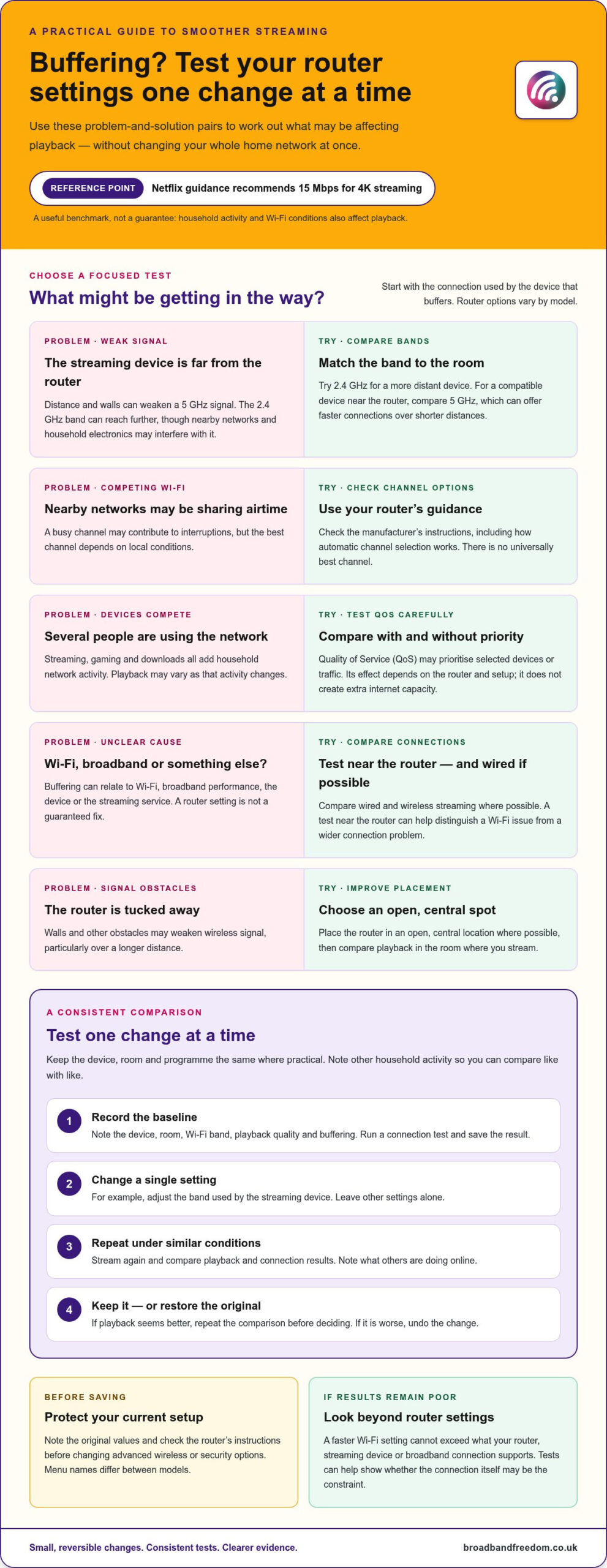
For a service-specific benchmark, the Netflix Help Centre’s current streaming guidance recommends 15 Mbps for 4K streaming. Treat that as a useful reference, not a guarantee of smooth playback. Other household activity also uses bandwidth, and Wi-Fi conditions affect the speed reaching your TV. The Wireless Router Overview explains how routers connect devices and manage network traffic.
Wi-Fi band and router placement: the basics
Try 2.4 GHz when a device is farther from the router or separated from it by walls, as this band can reach further. It may be more affected by interference from nearby networks and household electronics. The 5 GHz band can offer faster connections over shorter distances, but walls and other obstacles may weaken its signal. Place the router in an open, central spot where possible. The better band depends on the room and device, not a universal rule.
Which settings can influence streaming?
Channel selection may help if nearby Wi-Fi networks are competing for space, but the best channel depends on local conditions. Band steering lets a router direct compatible devices between bands; results vary by home and connected devices. Quality of Service (QoS) can prioritise selected traffic, such as video, over other network activity, though its effect depends on the router and setup.
Menu names and options differ between models, so check your router’s instructions before changing settings. If your tests suggest broadband performance may be the constraint, comparing the broadband options available to your household can help you assess whether another package better fits your streaming needs. The best broadband for streaming uk households choose still needs to suit their usage and connection conditions.
Which router settings should you adjust for smoother streaming?
Choose a setting to test based on the device and where it’s used. Router menus vary, so note the current option before making a change. This makes it easier to reverse the adjustment if another household device behaves differently afterwards. Start with the connection used by the device that buffers, rather than changing several settings across the network at once.
When to try 5 GHz or a less congested channel
For a compatible streaming device near the router, compare its usual connection with 5 GHz. If the device is farther away, walls and distance may mean another supported band works better. Channel selection is another possible adjustment when nearby networks compete for airtime, but there’s no universally best channel. Follow your router manufacturer’s current guidance, including instructions for automatic channel selection.
Should you use quality of service for streaming?
Quality of Service (QoS) controls differ by router. Some let you prioritise a device; others offer traffic categories. If you see a streaming option, check the model’s instructions to understand what it prioritises. Don’t assume a service-specific setting will recognise every app or stream correctly. If several people use the network at once, compare playback with and without the setting while keeping other conditions as similar as possible.
Check advanced settings before saving changes
QoS can assign priority to existing network traffic, but it doesn’t create extra internet capacity or overcome a slow connection. Treat it as a test, not a guaranteed fix. Before changing advanced wireless or security options, consult the manufacturer’s instructions for your router model and note the original values so you can restore them if needed. Avoid changing several advanced settings together, as you won’t know which adjustment affected performance.
If your tests point to the broadband connection rather than router configuration, comparing the broadband deals available to your household may help you assess other options. The best broadband for streaming uk households choose should fit their viewing habits and connection needs.
How to test router changes without disrupting your home Wi-Fi
Make one adjustment at a time. This helps you identify what made a difference and makes it easier to restore the original setup if another device has trouble. Keep the comparison consistent by using the same streaming device, room and programme where practical. If several people are online, note what they’re doing so you can account for changes in household activity.
A simple before-and-after streaming test
- Record the baseline. Note the device, room, Wi-Fi band, playback quality and any buffering. Run a connection test and save the result.
- Change one setting. Adjust a single option, such as the band used by the streaming device. Leave other settings alone.
- Repeat the test. Stream under similar conditions and compare playback and connection results. The internet speed testing guide can help you measure the connection.
- Keep or undo the change. If playback seems better, repeat the comparison before deciding to keep the setting. If it’s worse, restore the previous option.
Read the results in context
Connection results and playback can vary at different times. Note whether anyone else is streaming, gaming or downloading, and repeat the test at another time before drawing a conclusion. A speed test provides useful evidence, but it doesn’t measure every factor affecting a stream, including device reception or the streaming service’s performance. Look for a consistent pattern rather than relying on one result. For example, a better result near the router may point to a home Wi-Fi issue, while similar results in both locations suggest you should investigate further.
How to undo a setting that makes things worse
Write down the original setting before changing it. If you’re unsure how to restore it, follow the official support instructions for your router model. If repeated tests point to broadband performance rather than router configuration, compare broadband deals for your household as a possible next step. That can help you assess options against your usage and connection requirements, including the best broadband for streaming uk households may need.
When router settings are not enough to fix streaming
If buffering continues after careful, reversible setting changes, look beyond the router before deciding what’s wrong. A single pause or drop in picture quality doesn’t prove your broadband is too slow. The streaming service, device or temporary network congestion could also be involved. Look for a pattern across more than one test, and check whether the problem affects other devices or services too.
How to tell whether the issue is Wi-Fi or broadband
Compare a connection test close to the router with one in the room where you usually stream. If results are stronger nearby but weaker in that room, the in-home Wi-Fi signal may be contributing. Where practical, connect the same device to the router with Ethernet and compare it with Wi-Fi under similar conditions. A wired result that is consistently better points towards the wireless link, though it doesn’t identify the cause by itself.
Check whether other devices and streaming services show similar problems. If only one device or service is affected, that’s a useful clue, not a diagnosis. Repeat tests at different times and note whether the household is streaming, gaming or downloading. Ofcom’s broadband speed guidance explains why a provider’s estimated and guaranteed speeds can give more context than a headline “up to” figure.
Choose a next step based on your household
If wired and wireless tests both show persistent connection issues across devices, router settings may not be the main factor. Consider how many people stream at once, the number of connected devices and your contract preferences. The best broadband for streaming uk households need depends on those everyday demands and the connection available, rather than a single speed-test result.
If your tests suggest it’s time to consider other options, compare broadband deals for your household to explore packages that fit your needs.
Make your next streaming upgrade count
Your next step doesn’t have to be a major change. Use what you’ve learned from your tests to decide whether your household would benefit more from a different broadband package or simply from keeping the router settings that work for your home. The best broadband for streaming uk households choose is the one that fits their viewing habits, connected devices and budget, not just the biggest headline speed.
If your results point to the connection, compare options with those everyday needs in mind. Broadband Freedom brings major UK networks together for an independent comparison, including Full Fibre, fibre and standard broadband deals. You can compare available packages, including no-contract options, and weigh up which type may suit your household.
Compare broadband deals for your household and take a practical next step towards more reliable streaming. With a clearer idea of what your home needs, you can make your choice with confidence.
Frequently Asked Questions
Can changing router settings stop streaming from buffering?
Router changes may help when Wi-Fi is behind the buffering, but they can’t guarantee a fix. Distance from the router, interference, device capability and broadband performance can all affect playback. For example, if a television buffers while a nearby phone streams smoothly, the TV’s connection may be a factor. Test one reversible adjustment at a time and repeat the same viewing test; keep it only if the improvement recurs.
Is 5 GHz Wi-Fi better for streaming than 2.4 GHz?
Neither band is universally better for streaming. 5 GHz may suit a compatible device close to the router, while 2.4 GHz may reach farther in some homes. Results depend on whether both router and device support the band, as well as walls and interference. Try each from your usual viewing spot, using the same device and programme, to see which performs more reliably there.
Will quality of service settings improve Netflix or other streaming?
Quality of Service (QoS) may help some routers prioritise a device or traffic type, but the controls and results vary by model. It won’t add internet capacity. A router may also classify streaming traffic differently from what you expect, so a service-specific priority might not apply as intended. Check the instructions for your router model, then compare playback before and after the change.
Should I use an Ethernet cable for streaming instead of Wi-Fi?
An Ethernet cable can avoid some wireless interference and gives you a useful way to compare wired and Wi-Fi performance. Your streaming device needs a compatible network port or suitable adapter. A cable won’t increase the capacity of your broadband plan, but if playback is steadier when wired, Wi-Fi may be contributing to the problem. Compare the same device and programme where practical.
Can a VPN affect video streaming quality?
A VPN changes how your internet traffic is routed, which may affect streaming performance. The result depends on the VPN service, your network and location, so it won’t be the same for every household. Where appropriate and permitted by the streaming service’s terms, briefly compare playback with the VPN on and off. Keep the device, programme and viewing conditions consistent, and don’t use a VPN to bypass regional restrictions.

Article by
Elaine Lang
Elaine has over 20 years across Marketing, Communications and Public Relations in the UK. She has worked across large UK corporations, including Commercial Banks and Airports, to online consumer finance and technology solutions. Elaine has post graduate qualifications in Marketing from the Chartered Institute of Marketing (CIM) and the Industry of Direct Marketing (IDM). She is a lifelong feline fan, sharing her home with around 4-6 cats for many years. This of course can be a challenge when trying to work at home, as they like to try to help!