How to improve Wi-Fi when your broadband keeps dropping

A Wi-Fi dropout doesn’t always mean your broadband line is failing. To fix a broadband connection that keeps dropping, start with simple checks at home: restart the router, move it to a better position or reduce interference from household devices. The pattern of the dropouts can help you identify the cause.
It’s frustrating when a video call freezes or your connection disappears just as you need it. Before deciding you need a different package, check whether the cause is your device, Wi-Fi signal or broadband connection.
This guide explains how to test other devices, restart your router, improve its placement and signal strength, and reduce congestion from nearby networks. You’ll also learn what to look for if your Wi-Fi keeps switching networks, and when comparing broadband deals may be a useful next step.
Key Takeaways
- Compare the connection on different devices and in different rooms to help identify whether the dropout is linked to a device or Wi-Fi coverage.
- Move cordless phones, baby monitors and other potential sources of interference away from your router, then restart the affected device if needed.
- Place your router in an open, central position and avoid repeatedly power-cycling it; check whether network switching or crowded channels could be disrupting Wi-Fi.
- If practical checks don’t resolve the issue, Broadband Freedom can help you compare UK broadband deals, including Full Fibre and no-contract options, to find one suited to your household.
Can other household devices interfere with my WiFi?
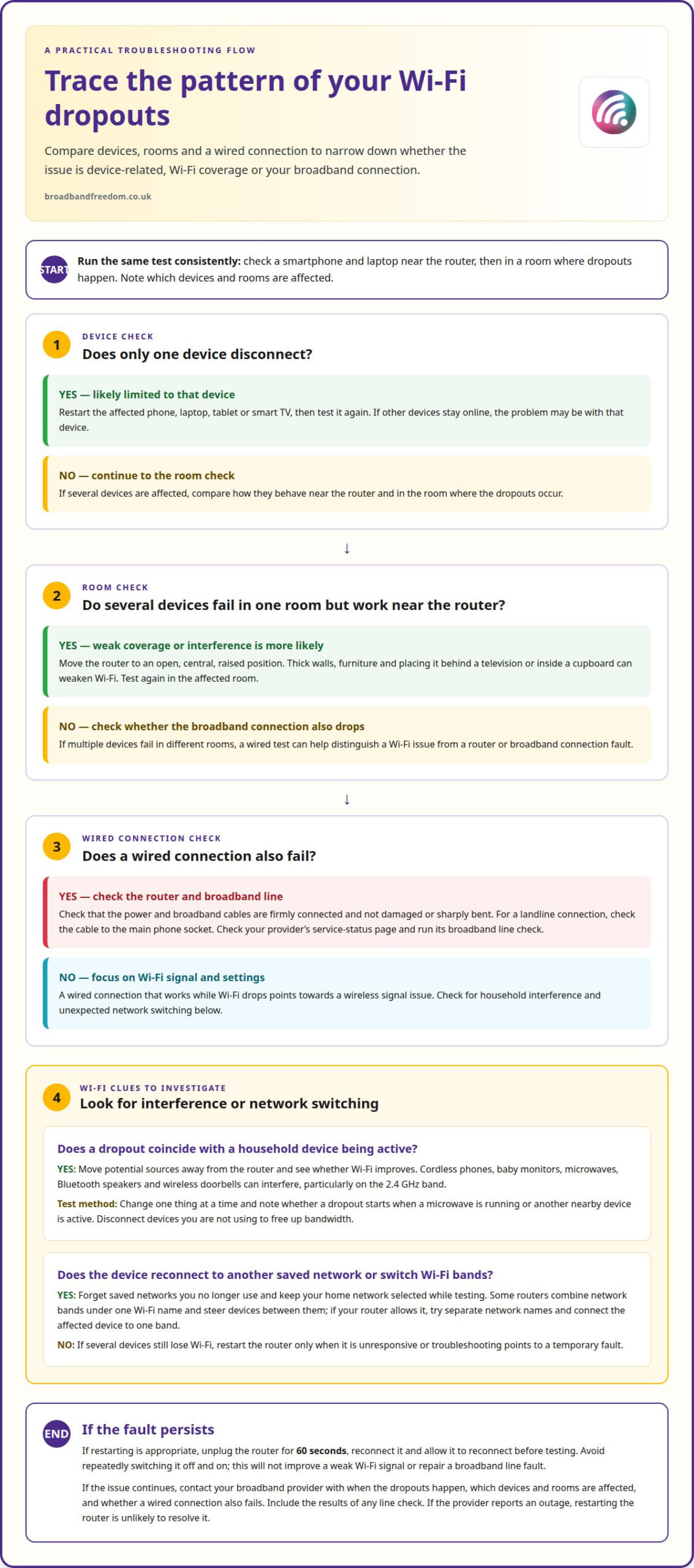
To separate a Wi-Fi problem from a router or broadband fault, compare devices and rooms: one failing device suggests a device issue, while several failing everywhere points towards the router or connection. If checks don’t improve your speed, contact your broadband provider; according to the Scottish Government, share when dropouts occur, which devices and rooms are affected, and whether a wired connection also fails.
-
Identify Household Devices Causing Interference
Move likely sources of interference away from the router, then see whether Wi-Fi improves. Cordless phones, baby monitors, microwaves, Bluetooth speakers and wireless doorbells can interfere, particularly on the 2.4 GHz band. Note whether a dropout starts when a microwave is running or a nearby device is active. Changing one thing at a time makes it easier to spot a pattern.
-
Test the Connection Across Devices and Rooms
Test the internet on a smartphone and laptop, first near the router, then in a room where dropouts happen. If one device disconnects but the others stay online, restart it and test again. If several devices fail in the same room but work near the router, weak Wi-Fi coverage or interference is more likely. Testing another device can help identify whether the problem is limited to one device.
-
Reduce Interference and Disconnect Unused Devices
Keep the router away from cordless phones, baby monitors and other wireless equipment, and disconnect devices you’re not using to free up bandwidth. If several devices still lose Wi-Fi, restart the router by unplugging its power for 60 seconds, then reconnect it. Restart the affected phone, laptop, tablet or smart TV too. Test again in the same room, with the same device, so you can tell whether the change helped.
How often should I restart my router?
- Inspect the router’s power and broadband cables, then make sure each plug is firmly in its socket. If you have a landline connection, check the cable between the router and the main phone socket. Look for loose, damaged or sharply bent cables before restarting the equipment.
- Check your broadband provider’s service-status page for an outage affecting your area. If the provider reports a fault, restarting your router is unlikely to resolve it. Note the service message and check again later for updates.
- Run your provider’s broadband line check to see whether it detects a connection fault. If possible, test with a wired connection and record the result alongside any dropouts. These details will help when you report a persistent problem.
Restart, record and escalate persistent faults
- Restart the router when it becomes unresponsive or troubleshooting points to a temporary fault, rather than repeatedly power-cycling it. Unplug its power for 60 seconds, reconnect it, then allow it to reconnect before testing again. Record whether the dropouts return and when they happen.
- If the fault continues, contact your broadband provider with the dates, times, affected services and line-check results. Ask how its compensation process applies to repeated outages or missed repairs. Ofcom’s complaints guidance explains how to raise an unresolved issue; the Communications Ombudsman provides an alternative dispute-resolution route for eligible complaints. If you’re considering a different package after troubleshooting, you can compare broadband deals.
Improving router placement and WiFi signal strength
- Restart the router if it becomes unresponsive or you suspect a temporary connection fault. Avoid repeatedly switching it off and on: this won’t improve a weak Wi-Fi signal or repair a broadband line fault. After restarting, leave the router running and note whether disconnections return.
- Place the router in an open, central position rather than behind a television or inside a cupboard. Thick walls and furniture can weaken Wi-Fi, especially in rooms farther away. Try a clear, raised position and test the signal in the rooms where you use connected devices.
- Check for obstacles between the router and the devices that need a steady connection. For example, a router tucked behind a bookcase may provide weaker coverage than one placed in the open. If reception is poor in one part of your home, compare it with the signal near the router.
Check router software and consider upgrades
- Check the router manufacturer’s website for the latest firmware and compare it with the version installed on your router. If connection problems keep returning, review the router logs for events around the times service drops. These details can show whether the router recorded a connection interruption.
- Consider replacing your router if it’s older, struggles with newer devices or has become unreliable. If Wi-Fi works well near the router but your household needs more broadband capacity, consider whether a different package might suit your usage. Changing packages won’t fix weak coverage or a line fault, so base your decision on what your tests indicate.
Wi-Fi network switching and crowded channels
- Notice whether a device disconnects as you move between rooms or reconnects to a different saved network. A phone may switch between your home Wi-Fi and another saved network, interrupting internet access. Open its Wi-Fi settings, forget networks you no longer use and keep your home network selected while testing.
- Check the router’s settings if devices lose connection while staying in the same room. Some routers combine network bands under one Wi-Fi name and steer devices between them. If dropouts coincide with a switch, try separate network names if your router allows it, then connect the affected device to one band.
- Consider channel congestion if nearby networks appear in your device’s Wi-Fi list and your connection falters. Several routers using the same channel can compete for wireless airtime, particularly in flats or closely spaced homes. Check your router’s Wi-Fi settings for channel selection options.
- If available, try your router’s automatic channel option first, or select a less busy channel in its settings. Change one setting at a time, reconnect a laptop or phone, and test the same task in the affected room. If performance worsens, restore the previous setting before trying another option.
- Keep a brief record of the network name, device, room and time whenever a dropout happens. For example, note whether a laptop disconnects only after changing rooms, or whether several devices fail together. If Wi-Fi adjustments don’t address a wider broadband capacity issue, compare broadband deals against your household’s needs.
Broadband Freedom
If interruptions continue after you’ve adjusted your home Wi-Fi, consider whether your broadband package suits your household’s needs. Broadband Freedom helps you compare UK broadband deals, including the latest offers from BT and Virgin Media. Comparing packages can be a useful next step if your service is consistently unreliable or your household’s internet use has changed.
Start with what matters at home: how many people use the internet, what they do online, and whether you need phone or television services in the same package. Broadband Freedom offers broadband and phone packages, as well as broadband and TV packages. Compare the services alongside connection details, rather than focusing on speed alone.
A new package won’t fix a weak Wi-Fi signal caused by router placement, household interference or a broadband line fault. If several devices lose connection at once, continue reporting persistent faults to your current provider. If your service works but no longer suits your usage, compare deals against your priorities, including the services your household wants bundled together.
Broadband Freedom brings current UK broadband offers together to make comparison easier. Review each package’s details and consider whether it suits your household before deciding to switch. You can compare BT and Virgin Media offers alongside phone and TV packages. Explore broadband deals with Broadband Freedom to find options that fit your requirements.
Choose your next broadband step
If your efforts to fix a broadband connection that keeps dropping haven’t restored a dependable service, use what you’ve learned to guide your next decision. Persistent dropouts across devices may need further investigation by your current provider. If your connection is stable near the router but your package no longer suits your household, comparing alternatives can help you assess your options.
Broadband Freedom offers full fibre, fibre and standard broadband deals to compare. Consider what your household needs from its connection, including where you use it and how many people rely on it. A different package may suit your usage, but it won’t resolve a fault in your existing line or improve Wi-Fi coverage by itself.
Take the next step at your own pace. Compare broadband deals with Broadband Freedom to explore available options and decide what fits your needs. A clearer picture of your connection and requirements can help you move forward with confidence.
Frequently Asked Questions
Why does my Wi-Fi keep dropping out unexpectedly?
Unexpected dropouts can come from the Wi-Fi link, an individual device or the broadband connection itself. Notice whether they begin during one activity, such as a video call, or affect several apps. If only one app freezes while other websites continue loading, the app may be responsible. Record what stops working and when so you can describe the fault clearly.
What do the lights mean?
Router lights show connection status, but their meanings vary by model. Check the labels beside the lights and consult your router’s manual. A light labelled “Wi-Fi” relates to the wireless network, while “Internet” or “Broadband” usually indicates the outside connection. Before reporting the problem, note which light changes during a dropout and whether it flashes or goes out.
Why does my WiFi keep disconnecting?
A device may disconnect because its wireless link is unstable, it switches networks or its connection settings need attention. Check whether disconnections happen after the device wakes from sleep or moves around your home. If other devices stay connected, focus on the affected device’s saved networks and settings. If several disconnect together, investigate the router or broadband service instead.
Why your broadband keeps dropping out, and how to fix it?
Dropouts can come from your home Wi-Fi, router behaviour or a broadband line fault. Compare what happens across devices and note whether the problem follows one device or affects the whole household. The right fix depends on where the connection fails. If the issue persists across devices, give your provider the times and pattern you’ve recorded.
What steps fix a broadband connection that keeps dropping in the UK?
First establish whether the issue affects one device or several, then test the connection in another location. Check your provider’s service status and use its line-check tool. Keep a record of dropouts and test results. If the fault continues, report it to your provider with those details so it can investigate the connection.
How to check broadband outage or service status with UK providers
Use your provider’s service-status page or account app to look for a reported fault affecting your address. Follow its prompts, which may ask for your postcode or account details. If no outage is listed but your connection still fails, run the provider’s line test and report the result. Keep any fault reference and note when service drops again.
How to test broadband speed, latency, and connection stability
If possible, test with a wired connection and record the result alongside any dropouts. Compare the connection across devices and rooms, then repeat tests with the same device in the same room after making changes. To test latency, run a broadband speed test that reports ping, or use a ping tool to measure the time taken for data to reach a server and return. Record the results and when disconnections happen.

Article by
Elaine Lang
Elaine has over 20 years across Marketing, Communications and Public Relations in the UK. She has worked across large UK corporations, including Commercial Banks and Airports, to online consumer finance and technology solutions. Elaine has post graduate qualifications in Marketing from the Chartered Institute of Marketing (CIM) and the Industry of Direct Marketing (IDM). She is a lifelong feline fan, sharing her home with around 4-6 cats for many years. This of course can be a challenge when trying to work at home, as they like to try to help!