How to Stop Wi-Fi Buffering on Your Smart TV by Fixing Weak Signals
A fast broadband package won’t always stop Wi-Fi buffering on your smart TV. If the signal is weak where the TV is, or other devices are using the connection, streams may still pause while they load.
That’s frustrating, especially when other devices seem to work perfectly. Before deciding whether your broadband needs attention, work through a few practical checks.
This guide explains how to check your TV’s Wi-Fi signal, improve its position or connection, and free up bandwidth by pausing downloads and other streams. You’ll also find out how restarting your TV and apps may clear temporary glitches, when a wired connection could help, and what to consider if your streaming device is outdated. Try each step in turn to narrow down the cause and choose a sensible next move for your home.
Key Takeaways
- Check the TV’s Wi-Fi signal and reduce competing internet use to see whether congestion or a weak connection is behind the pauses.
- Restart your TV, streaming device and router, then update their software and clear the streaming app’s cache to tackle temporary glitches.
- Try Ethernet or a powerline connection if Wi-Fi remains unreliable, and consider whether an older streaming device is limiting performance.
- Match picture quality to your connection: according to the UK Government, HD streaming needs at least 25mbps, while 4K may require 50mbps or higher.
Does upgrading my streaming device help with buffering issues?
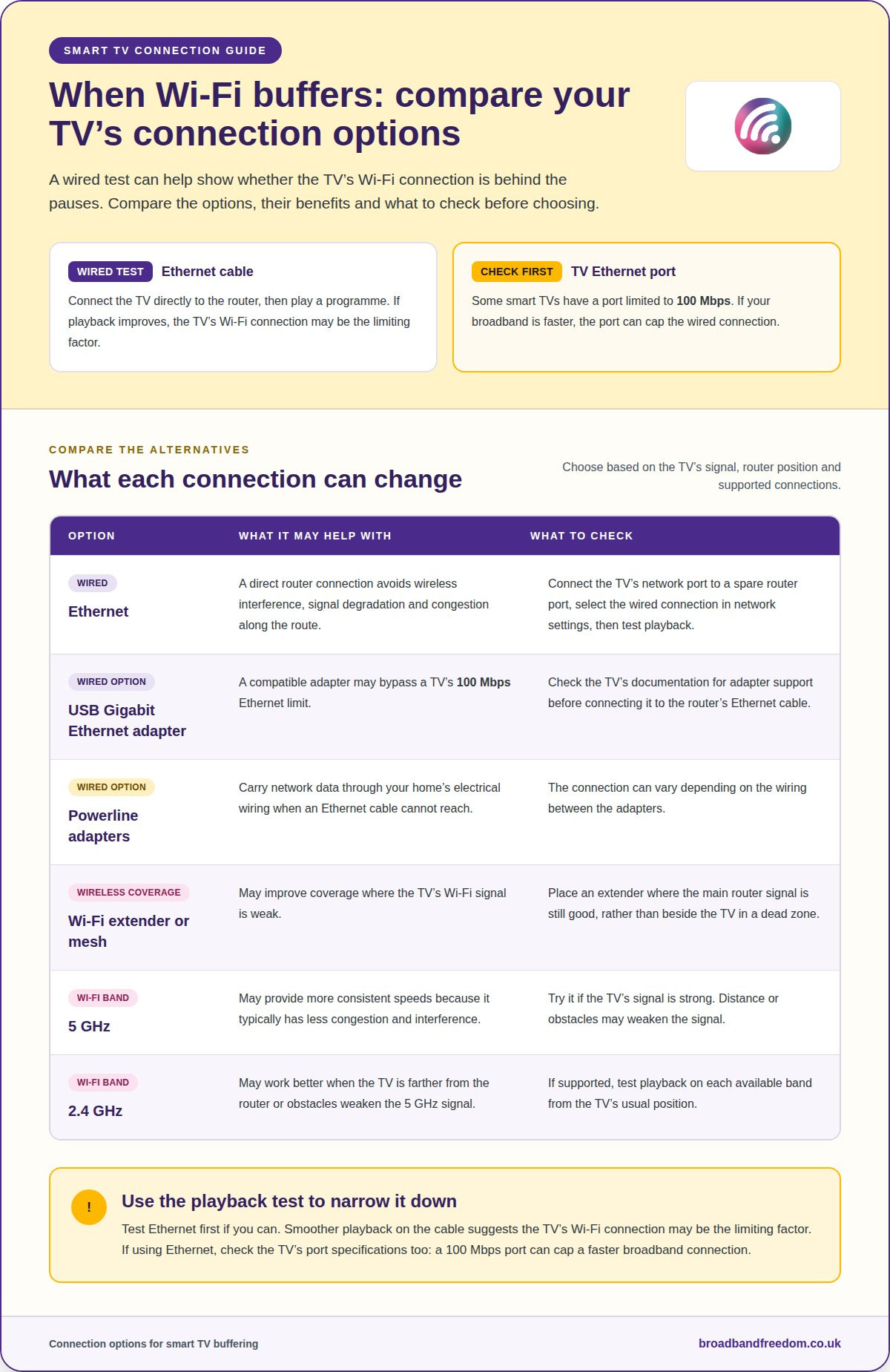
A newer streaming device may help if its processing power or Wi-Fi capabilities are limiting playback. An Ethernet connection can reduce wireless interference, while an extender or mesh system may improve coverage where the TV’s signal is weak.
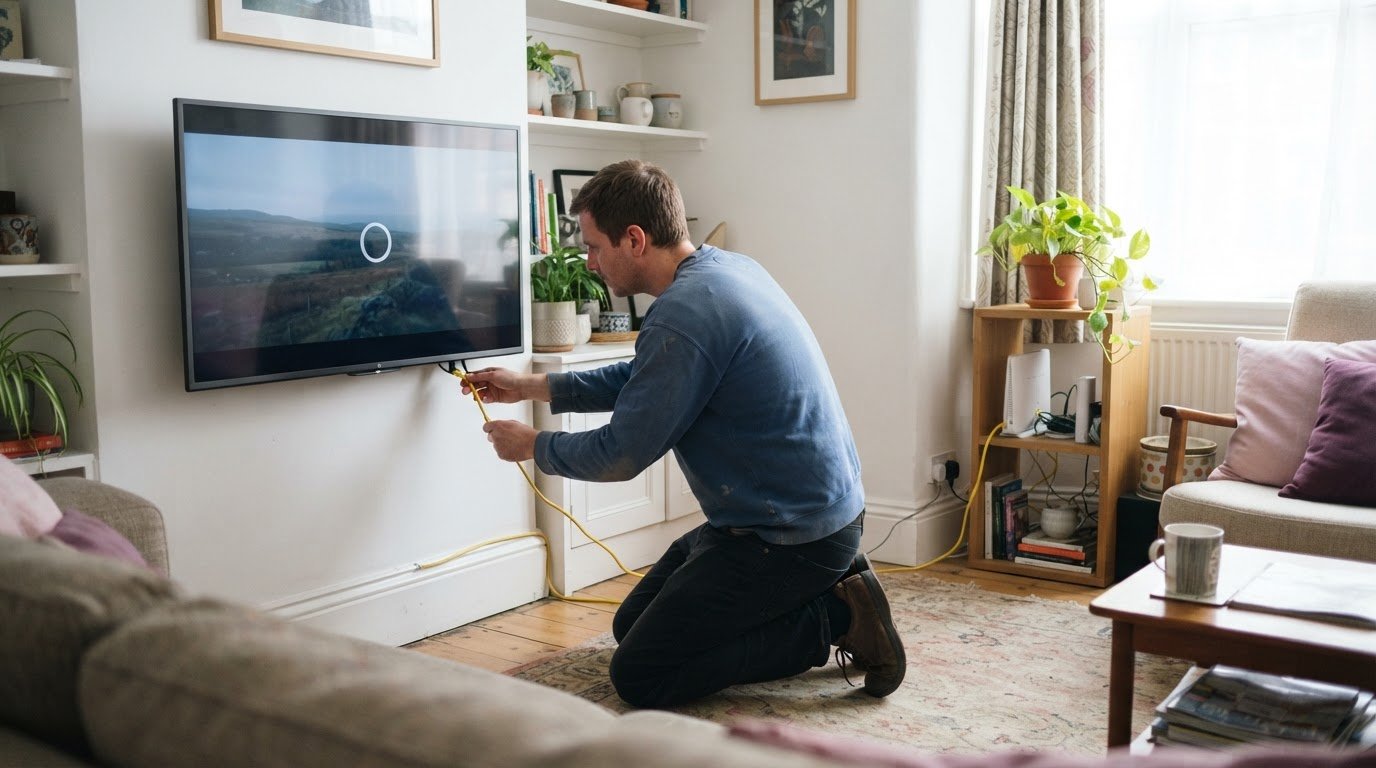
- Connect the TV to the router. Plug an Ethernet cable into the TV’s network port and a spare router port. In the TV’s network settings, select the wired connection, then play a programme to check for smoother playback.
- Test Ethernet instead of Wi-Fi. A cable gives the TV a direct connection to the router, avoiding wireless interference, signal degradation and congestion along the route. If buffering improves, the TV’s Wi-Fi connection may be the limiting factor.
- Check the TV’s Ethernet port speed. Some smart TVs have a port limited to 100 Mbps. If your broadband is faster, the port can cap the wired connection. Check the TV’s specifications to understand whether its Ethernet port could be a bottleneck.
Try another way to connect
- Consider a USB Gigabit Ethernet adapter. A compatible adapter may bypass a TV’s 100 Mbps Ethernet limit. Check the TV’s documentation for adapter support before connecting one to the router’s Ethernet cable.
- Use powerline if a cable can’t reach. Powerline adapters carry network data through your home’s electrical wiring. The connection can vary depending on the wiring between them.
- Position a Wi-Fi extender carefully. Place it where the main router signal is still good, rather than beside the TV in a dead zone. An extender or mesh system may help improve coverage where the TV’s Wi-Fi signal is weak.
Does restarting TV and Apps help?
Yes. Restarting can clear temporary glitches, while updates and lower picture quality may address software or speed problems causing pauses.
-
Update router, TV and streaming software
Open your router’s administration app or settings page and install any available firmware update. Then check for a software update in your TV’s settings and, if you use one, on your connected streaming device. Menu names vary by model. Keep each device powered on during installation, and don’t start an update halfway through a programme.
-
Restart the router and streaming device
Close the streaming app, then restart the TV or streaming device using its menu. If buffering continues, unplug the router for 30 seconds before reconnecting it. Wait for its connection to return, then reopen the app and test playback. Restarting can clear temporary glitches, but repeated pauses across several devices may point to a wider connection issue.
-
Clear the streaming app cache
Find the streaming app in your TV or device settings and choose the option to clear its cache, if available. Temporary cached files can sometimes affect how an app runs, so clearing them may help. Avoid selecting “clear data” unless you’re prepared to sign in again, as this can remove saved app information.
- Lower the picture quality. Select HD or a lower resolution in the streaming app’s playback settings. Higher-quality video needs more bandwidth, so reducing resolution can help if your connection is under pressure. If streaming still buffers across devices, check your measured speed and compare broadband deals that better suit your household’s streaming use.
Weak Wi-Fi signal and interference
Switch to 5 GHz if the TV’s signal is strong; 2.4 GHz may suit a distant room better. Other devices and high-quality streams can compete for bandwidth; contact your provider if buffering persists across apps after these checks.
-
Reduce other internet use
Pause downloads, gaming and background uploads while streaming on your TV. Carmarthenshire County Council notes that streaming, gaming and downloads can affect broadband speed-test results. Close streaming apps on other devices, then test the same programme again. If playback improves, household internet use was contributing to congestion, rather than the TV alone causing the slowdown.
-
Compare 5 GHz and 2.4 GHz Wi-Fi
Open your router’s Wi-Fi settings and switch the TV between the available bands, if supported. The 5 GHz band may provide more consistent speeds because it typically has less congestion and interference. The 2.4 GHz band may work better when the TV is farther from the router or obstacles weaken the 5 GHz signal. Test playback on each band from the TV’s usual position.
-
Review streaming quality and connected devices
Check the streaming app’s picture-quality setting and choose a lower resolution if your connection is under pressure. Higher-quality video uses more bandwidth, while other devices on the same connection leave less available for the TV. Pause uploads and downloads, then compare playback at the lower setting. If it helps, congestion or the stream’s bandwidth demand may be causing the pauses.
- Check your internet speed and decide when to contact your provider. Run a speed test near the TV while other household activity is paused, then repeat it during buffering. A persistently slow result, or buffering across different apps after testing the signal and reducing other internet use, points to a connection issue worth raising with your UK broadband provider. Explain when it happens and share your test results.
Common causes of smart TV buffering
Buffering happens when video data doesn’t reach your TV quickly enough to keep playback going. Check picture quality, connection performance and household network use to narrow down the cause.
- Match picture quality to your connection. The UK Government’s streaming-speed guidance recommends at least 25mbps for HD video; 4K streaming may require 50mbps or higher. If pauses mainly happen while watching 4K, lower the resolution and test that programme again.
- Compare connection performance. Run a speed test near the TV and compare it with a result taken near the router. A slower result at the TV points towards a local connection problem; similarly low results in both places suggest the broadband connection may be limiting playback.
Pinpoint what is disrupting playback
- Test during quieter network use. Pause downloads, online gaming and other streams, then replay the same scene. If it plays smoothly, competing activity may have reduced the bandwidth available to your TV.
- Compare apps and programmes. Try another service and title. If just one app buffers, focus on that app; if several do, check the shared connection. Ofcom’s latest Connected Nations report offers a recent overview of UK broadband connectivity.
- Change one factor at a time. Keep the programme and device the same while testing a different resolution or network connection. This makes it easier to identify what changes playback, rather than changing several settings without knowing which mattered.
Takeaway: Match stream quality to the connection, then isolate whether the issue affects one app, the TV’s local connection or your wider broadband. If your results point to the broadband connection, compare broadband deals that suit your household’s viewing needs.
Broadband Freedom
If you’ve tried the connection checks and your smart TV still buffers, Broadband Freedom can help you compare broadband options. If speed tests remain slow, or several streaming apps pause despite a reliable Wi-Fi signal, reviewing available packages may help you decide what to do next.
Broadband Freedom helps households across the UK compare broadband choices, including the latest offers from Virgin Media and BT. These options may be worth exploring if you’re considering a different broadband package after troubleshooting, rather than buying a new streaming device or changing your TV settings.
Choose options around your household needs
Before comparing packages, consider how your household uses its connection. If you want TV and broadband together, Broadband Freedom offers Broadband and TV Packages. If you also want a home phone, Broadband and Phone Packages are another option. The right package depends on what you want included and how your household uses these services.
Keep your speed-test results and troubleshooting notes to hand when considering a change. Note whether buffering affected one app or several, whether it continued after you paused other internet use, and whether the TV’s signal was strong. These details can help you focus on the issue you’re trying to solve instead of changing settings that already work.
Switching broadband won’t fix every cause of buffering. If the problem affects only one app or the TV’s Wi-Fi signal is weak, the app or home network may still need attention. If your checks point to a broadband connection that doesn’t suit your streaming use, compare relevant package options and the latest offers with Broadband Freedom.
Choose a broadband option that fits your viewing
To stop Wi-Fi buffering on your smart TV, base your next decision on how your household uses broadband, not just the package name. Consider how many people stream, work or play online at the same time, and whether your current connection supports those routines. Changing packages is most relevant when the broadband connection itself limits playback; it won’t fix every app or in-home Wi-Fi issue.
Broadband Freedom offers Full Fibre Broadband Deals, Fibre Broadband Deals and Standard Broadband Deals to compare against your household’s needs. Consider the connection you need for everyday use and the services you want included before deciding whether to explore a different deal.
Take the next step at your pace. Explore broadband deals with Broadband Freedom and consider which option best fits your viewing and household use. A clearer choice starts with what matters in your home, and you’re well placed to make it.
Frequently Asked Questions
Why Does My TV Keep Buffering & How to Fix It?
Your TV buffers when playback can’t keep up with incoming video data. If only one app pauses, sign out and back in, then test another programme in that app. If several apps buffer, focus on the connection they share. Note whether the problem occurs at particular times, such as when household internet use is busy, to help identify a pattern.
What exactly is buffering?
Buffering is the short wait while a streaming app loads video data before continuing playback. The app stores some content temporarily so the programme can play smoothly. If data arrives more slowly than the video plays, the stored content runs low and playback pauses. This can point to connection speed, signal quality, congestion or an app issue.
How do I fix Wi-Fi buffering on a smart TV?
To stop Wi-Fi buffering on your smart TV, change one thing at a time and retest the same programme. First, move the TV or router to reduce obstacles between them, then pause downloads and other streams. If the TV still pauses, try a wired connection or a lower picture-quality setting. Retesting after each change helps show which adjustment made a difference.
How can I check smart TV internet speed and Wi-Fi signal strength?
Run a speed test using a browser or app on a device connected to the same Wi-Fi network, positioned beside the TV. Then repeat the test near the router. A stronger result near the router may indicate weak coverage where you watch. Check the TV’s network menu for a signal indicator, if available, and compare its reading after changing the TV’s location or Wi-Fi band.
What internet speed is needed for HD and 4K streaming in the UK?
According to the UK Government, at least 25mbps is recommended for streaming HD video, while 4K streaming may require 50mbps or higher. These are useful benchmarks, not a guarantee that every stream will play without interruption. Other household devices share the connection, and Wi-Fi signal quality affects the speed reaching the TV. Test during your usual viewing conditions.
How do I restart a smart TV, router and modem to stop buffering?
Close the streaming app and restart the TV using its power menu. If buffering continues, unplug the router for 30 seconds, then reconnect it. If your modem is a separate unit, restart it as well and let its connection return before testing the TV. Open the app again and play the same programme, so you can tell whether restarting changed playback.

Article by
Elaine Lang
Elaine has over 20 years across Marketing, Communications and Public Relations in the UK. She has worked across large UK corporations, including Commercial Banks and Airports, to online consumer finance and technology solutions. Elaine has post graduate qualifications in Marketing from the Chartered Institute of Marketing (CIM) and the Industry of Direct Marketing (IDM). She is a lifelong feline fan, sharing her home with around 4-6 cats for many years. This of course can be a challenge when trying to work at home, as they like to try to help!