WiFi signal strong but internet slow? Check your PC connection
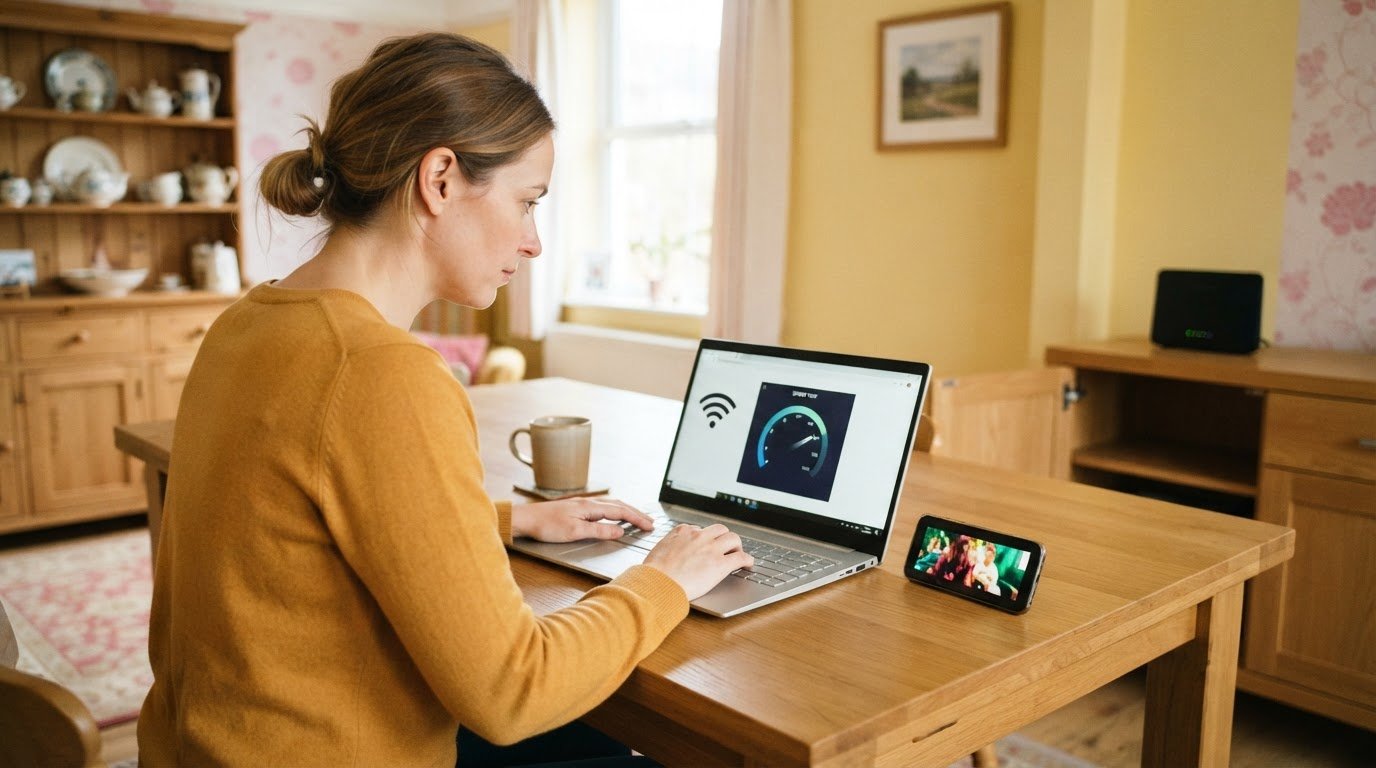
A strong WiFi signal doesn’t necessarily mean your PC has a fast internet connection. If the WiFi signal is strong but the internet is slow on your computer, the cause could be the PC’s connection to the router, congestion on your network or a problem beyond your home WiFi.
It’s frustrating when other devices work normally but your PC doesn’t. The signal indicator shows how well your computer connects to the router, not how quickly data reaches the wider internet.
Find the cause before changing your broadband. This guide explains how router placement and interference, connected devices, WiFi bands and your PC’s network adapter settings can affect speed. You’ll also learn how to compare your PC’s connection with other devices and what the results can tell you, so you can focus on the likely cause instead of changing settings at random.
Key Takeaways
- Move the router into an open, central position and consider nearby electronics or neighbouring networks that may interfere with WiFi.
- Check which devices are using the connection, then test whether switching between the 2.4 GHz and 5 GHz bands helps your PC.
- Review your Windows network adapter’s power-saving and advanced settings if the PC is slower than other devices nearby.
- Compare a wired connection with WiFi to help pinpoint the cause; if your broadband connection is the issue, explore deals that fit your household’s needs.
WiFi coverage, router placement and interference
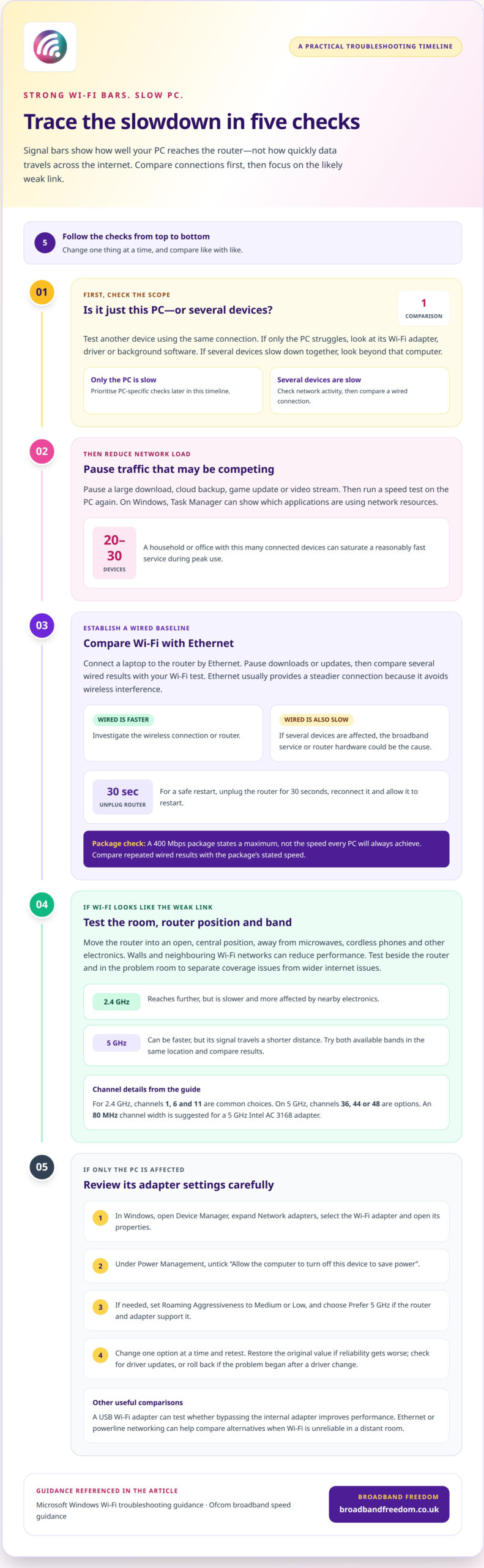
Strong signal-strength bars show your PC can reach the router, not that data is travelling efficiently. Put the router in an open, central position, away from microwaves, cordless phones and other electronics. Walls and neighbouring WiFi networks can weaken performance, especially in flats where routers share channels. If speeds drop in one room, test beside the router to distinguish coverage problems from wider internet issues.
Interference can cause data errors and retransmissions, reducing the amount of information sent. A Windows WiFi analyser can show nearby networks and their channels. For 2.4 GHz, channels 1, 6 and 11 are common choices; on 5 GHz, channels 36, 44 or 48 are options. An 80 MHz channel width is suggested for a 5 GHz Intel AC 3168 adapter. Microsoft’s Windows WiFi troubleshooting guidance can help with connection checks.
Check speed and restart safely
Unplug the router for 30 seconds, reconnect it, then allow it to restart. To test accurately, connect a laptop to the router by Ethernet and pause downloads or updates. Compare several results with your WiFi test. Ofcom’s broadband speed guidance explains how to assess the speeds associated with your package.
The speed you can achieve depends on your broadband technology and package. A 400 Mbps package states a maximum, not the speed every PC will always achieve. Compare repeated wired results with your package’s stated speed. If they remain much lower, raise a complaint with your provider and review your contract before deciding whether to switch.
Checking connected devices and Wi-Fi bands
Check what’s using your connection before changing settings. A household or office with 20 or 30 connected devices can saturate a reasonably fast service during peak use; in specialised commercial or healthcare premises, providers like Peninsula Smart Care install dedicated communication systems to prevent congestion. Pause a large download, cloud backup or game update, then run a speed test on your PC. If speeds improve, congestion from active devices may be contributing. On Windows, Task Manager can show which applications are using network resources.
Ethernet usually gives a steadier connection because it avoids wireless interference. The 2.4 GHz band reaches further, but is slower and more affected by nearby electronics; 5 GHz can be faster, but its signal travels a shorter distance. Try the PC on each available band in the same location, then compare results with a wired test.
Check which devices are using bandwidth
Disconnect devices that aren’t in use, especially those streaming video or downloading files. Check whether the slowdown affects one device or several. If only your PC struggles, focus on its WiFi adapter, software and drivers. Install operating-system updates and check for a network-adapter driver update from the PC or adapter manufacturer.
Test the PC’s adapter
If the problem began after a driver change, rolling back to an earlier version is another troubleshooting step. A USB WiFi adapter can help you test whether bypassing the PC’s internal adapter improves performance. Older devices may not support the same WiFi standards as newer equipment. Consider an upgrade only after checking whether a driver update, another band or fewer active devices resolves the issue.
Network adapter power-saving and advanced settings
On a Windows laptop, power-saving settings can restrict the network adapter. Open Device Manager, expand Network adapters, select your WiFi adapter and open its properties. Under Power Management, untick “Allow the computer to turn off this device to save power”. This may stop Windows switching off the adapter to conserve energy. If the connection remains unstable, review the adapter’s advanced options rather than changing several settings at once.
Adjust adapter preferences carefully
Set Roaming Aggressiveness to Medium or Low, then choose Prefer 5 GHz under Preferred Band if your router and adapter support it. Change one option at a time and test the laptop’s connection after each adjustment. That makes it easier to identify which setting affects performance. Restore the original value if a change makes the connection less reliable.
Check background activity and security
Bandwidth is shared across your home network, so backups, updates and other background tasks can affect what’s available to your computer. Pause non-essential syncing or downloads, then retest. If unexplained activity continues, scan with your installed antivirus software and review unfamiliar network use in Windows Task Manager. Keep Windows and the network-adapter driver updated; for workplace environments dealing with persistent connectivity or data concerns, IT solutions providers such as Insoft Services can help manage complex networking and cybersecurity needs.
Try a wired alternative
If WiFi remains unreliable in a distant room, powerline networking can carry a connection through your home’s electrical wiring; some devices also provide WiFi. An Ethernet cable is another option where practical. Compare your laptop’s connection using each method. If powerline or Ethernet works better, the wireless connection may be the weak link, rather than your computer’s broadband settings.
Common causes of slow internet
If the WiFi signal is strong but the internet is slow on your PC, test whether other devices are affected too. Connect a laptop to the router with an Ethernet cable and compare its speed with WiFi. If Ethernet is faster, investigate the wireless connection or router. If several devices are slow on Ethernet too, the broadband service or router hardware could be the cause.
Work through the checks in order: pause downloads and streaming, test one device, then compare its WiFi and Ethernet connections. Next, test another device using the same connection. If the WiFi signal is strong but internet is slow on just one computer, focus on its adapter, driver or background software. If several devices slow down together, look beyond that computer.
Household traffic can use the bandwidth your other tasks need. A 25 Mbps plan may struggle when video calls, streaming and file backups run simultaneously. Phones, televisions and computers can all contribute. Retest after pausing a cloud backup or other demanding activity to see whether the connection responds better.
Older hardware can also limit performance. A router from 2015 running WiFi 4 (802.11n), for example, can bottleneck a modern gigabit connection despite strong signal strength. Record wired test results and note whether one device or several are affected. Those details help distinguish a local equipment problem from an issue with the wider internet connection.
A strong WiFi signal shows that a device can communicate with the router, but not what happens between the router and the rest of the internet. Windows users can check Task Manager for background applications using network resources and temporarily disable them.
Broadband Freedom
Broadband Freedom can help when your checks point beyond the PC’s WiFi settings. If several devices remain slow on a wired connection, compare broadband options to see whether another package better suits your household. If only one computer struggles, focus on its adapter or software first: changing broadband won’t fix a device-specific problem.
Consider how your household uses the internet before comparing options. Simultaneous streaming, video calls and downloads place different demands on a connection than occasional browsing. Broadband Freedom compares standard, fibre and full fibre broadband deals, as well as packages that combine broadband with phone or TV. The right option depends on your address, available speeds and household needs.
If you’re considering a change, Broadband Freedom also features the latest offers from Virgin Media and BT. Compare package details with your needs, including whether you want phone or TV included. A new deal won’t fix poor WiFi placement or a faulty PC adapter, so use wired speed tests and device checks to establish whether the broadband service is the issue.
Keep your test results and note whether the slowdown affects one device or the whole household. These details give you a clearer basis for deciding whether to troubleshoot your equipment further or explore another package. Choose based on the speeds and features that fit your situation, rather than the strongest signal indicator alone. If you’d like to consider different packages, explore broadband deals with Broadband Freedom.
Frequently Asked Questions
Why is my internet slow on my PC, but not on any other device in my home?
If only your PC is slow, its WiFi adapter, driver, VPN or background software may be responsible. Compare a browser with another app, then temporarily disconnect any VPN and test again. If the problem persists across browsers while other devices work, check the computer manufacturer’s guidance for your adapter model and Windows version before reinstalling its driver.
Why is my WiFi often slow and cutting out on only one device?
Intermittent problems on one device often point to its WiFi adapter, power settings or saved network profile. If the issue occurs after waking a laptop from sleep, restart the device and reconnect to your network. You can also remove the saved WiFi network and join it again using the password. If other networks work normally, consult the device manufacturer’s troubleshooting guidance.
Why is my internet slow when my WiFi signal is strong?
A strong signal doesn’t measure every part of your internet connection. Your broadband service, router hardware, a busy website or a VPN can still affect loading times. Try another website and app, then compare results over a wired connection. If one site is slow but other services work, the issue may be with that site rather than your home network.
Can too many connected devices or background downloads slow down internet?
Yes. Devices can use bandwidth even when nobody is browsing, for example through automatic photo syncing, app updates or a smart television downloading content. Pause those tasks and retest a video call or download. Uploads matter too: a cloud backup sending large files can make other online tasks feel less responsive, even when download speed seems reasonable.
How can WiFi interference, router placement or a crowded channel affect internet speed?
Interference can make wireless data less efficient, even when your device shows a strong signal. Thick walls, metal furniture and nearby networks can obstruct or compete with the router’s signal. If performance changes after moving the router or switching channels, that points to a local WiFi issue. Keep the router clear of enclosed cabinets and large metal objects.
Does restarting or updating a router fix slow internet, and how do I do it safely?
Restarting can refresh a router’s connection, but it won’t increase the maximum speed of your broadband package. Switch it off, wait 30 seconds, then power it on and allow the connection to return. For firmware updates, use the router maker’s official instructions and don’t interrupt the update. Avoid a factory reset unless you’re ready to set up the network again.

Article by
Elaine Lang
Elaine has over 20 years across Marketing, Communications and Public Relations in the UK. She has worked across large UK corporations, including Commercial Banks and Airports, to online consumer finance and technology solutions. Elaine has post graduate qualifications in Marketing from the Chartered Institute of Marketing (CIM) and the Industry of Direct Marketing (IDM). She is a lifelong feline fan, sharing her home with around 4-6 cats for many years. This of course can be a challenge when trying to work at home, as they like to try to help!