Virgin Media Router Guide 2026: Hub 3, 4, and 5 Specs Explained

Did you know that 78% of UK homes have access to gigabit-capable broadband, yet millions still struggle with sluggish speeds? According to the latest Ofcom data, the infrastructure exists, but your hardware might be holding you back. It’s frustrating when you pay for premium service only to face dead zones or a flashing light on your virgin media router. You deserve a connection that works, without the headache of technical jargon or price hikes whilst using older hardware.
Optimising Your 2026 Home Network
We’ve created this guide to empower you with the facts. You’ll discover the specs for the Hub 3, 4, and 5, alongside troubleshooting steps for stubborn hub lights. We also reveal how to secure a free hardware upgrade in 2026 to match the 99.88% uptime reported in Virgin Media performance reviews. By the end, you’ll know how to organise your WiFi and secure the best broadband value for your household requirements.
Key Takeaways
- Identify the core differences between Hub 3, 4, and 5 to determine if your current hardware is capable of supporting modern Wi-Fi 6 speeds.
- Decode common light sequences on your virgin media router to quickly resolve connection drops and identify potential overheating issues.
- Learn how to use official diagnostic tools to eliminate home WiFi dead zones and improve signal strength in every room.
- Understand the eligibility requirements for a free hardware upgrade and how to compare your current package against the latest market deals.
Virgin Media Router Guide: Understanding Your Hub Options in 2026
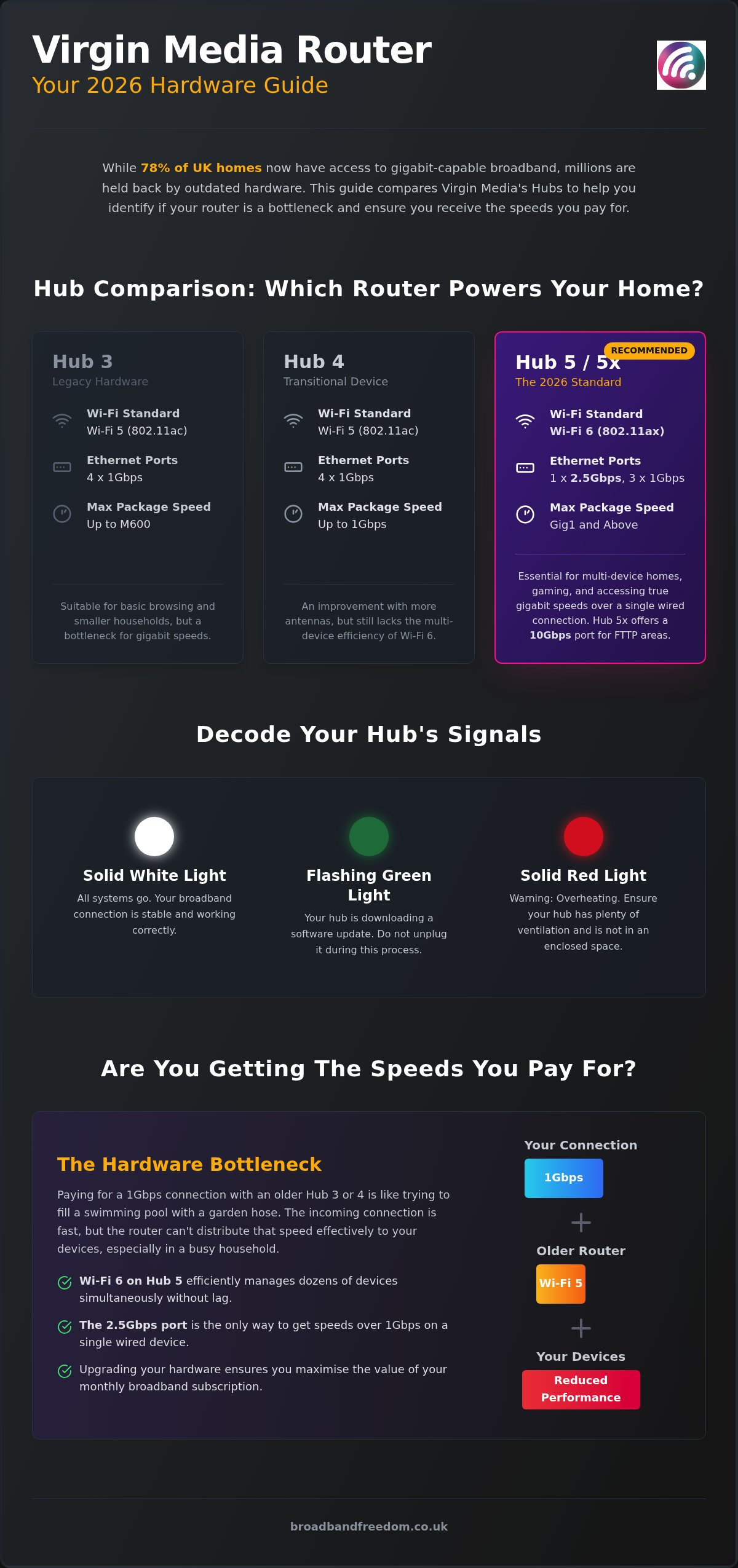
Your virgin media router acts as the vital gateway for all cable and fibre services delivered by Virgin Media. Whilst the hardware is provided on a loan basis at no extra cost, the technology inside determines your daily experience. There are four primary models currently in circulation: the legacy Hub 3, the transitional Hub 4, the standard Hub 5, and the specialist Hub 5x.
Positioning Your Hub for Success
“UK housing stock, with its thick internal brick walls, presents a unique challenge for WiFi signals,” notes tech analyst James Barton. “Placement is everything; even a Hub 5 can’t perform if it’s tucked inside a cupboard or behind a sofa.” Position your hub in a central, open location to ensure maximum coverage across your home.
The Evolution of Virgin Media Hardware
The journey from early SuperHubs to today’s intelligent hardware reflects the UK’s growing demand for bandwidth. The Hub 3, released in 2016, remains the entry point for standard fibre packages. However, identifying which virgin media router you have is crucial, as the Hub 3 is now considered legacy hardware. By 2026, the Hub 5 has become the benchmark, offering Wi-Fi 6 capabilities that older models simply cannot match.
Why Your Router Model Affects Your Monthly Value
Hardware performance is directly linked to the value you get when you compare broadband deals. If you’re paying for a 1Gbps connection but using a Hub 3, you’ll face significant bottlenecks. Modern 2026 speeds require the Hub 5’s 2.5Gbps port to function correctly. Don’t let outdated hardware waste your monthly subscription. Upgrading ensures you actually receive the high-speed connection you’re paying for.
Hub 5 vs Hub 4 vs Hub 3: Comparing Tech Specs and Performance
Comparing hardware generations reveals why your connection might feel dated. The Hub 3 and 4 rely on the older WiFi 5 (802.11ac) standard, which often struggles with the high-density traffic of modern homes. The Hub 5 represents a major leap with WiFi 6 (802.11ax). As noted in the official Hub 5 announcement, this model includes a 2.5Gbps Ethernet port. This allows power users to access speeds exceeding 1Gbps on a single wired device. The Hub 4 was a transitional device, offering seven internal antennas compared to the Hub 3’s five. According to Ofcom, the shift towards gigabit-capable networks has made such hardware efficiency a top priority for consumers.
The Hub 5x: Built for XGS-PON Full Fibre
If you reside in a recently upgraded FTTP area, you might receive the Hub 5x. This model is specifically designed for XGS-PON networks, which support symmetrical upload and download speeds. Unlike the standard Hub 5, the 5x features a massive 10Gbps Ethernet port. This hardware ensures that even the most demanding “Gig2” connections operate without technical restrictions, future-proofing your home for the next decade of digital growth whilst using a casing made from 100% recycled plastic.
WiFi 6 vs WiFi 5: What Does it Actually Mean for You?
In 2026, WiFi 6 has transitioned from a luxury to the essential standard for any multi-device household. While WiFi 5 handles a few devices well, WiFi 6 manages dozens of simultaneous connections without lag. It organises data more efficiently, which is vital for busy homes with multiple smartphones and gaming consoles. Industry data suggests WiFi 6 can also improve device battery life by allowing hardware to “sleep” more effectively between data bursts. If your current virgin media router feels sluggish, it’s likely a hardware bottleneck. You can use our full fibre broadband checker to see if your area supports these speeds and if a package refresh could secure you this superior hardware.
Troubleshooting and Upgrading Your Virgin Media Hardware
Understanding the visual signals on your virgin media router helps you resolve issues without waiting for an engineer. A solid white light indicates everything is functioning normally. If you see a flashing green light, your device is simply downloading a software update; don’t unplug it during this phase. However, a solid red light is a warning that your hub is overheating. Ensure it has plenty of ventilation and isn’t trapped behind furniture or inside a closed cabinet.
Managing Signal Loss and Intelligent WiFi
Virgin’s Intelligent WiFi feature works in the background to automatically switch your devices to the least congested channel. Despite this, physical barriers remain a challenge for any wireless network. Research indicates that standard UK brick walls can cause a signal loss of approximately 10 to 15 decibels, effectively halving your WiFi strength in some rooms. Use the Virgin Media Connect app to scan for these “dead zones” and determine if you require additional WiFi Pods to boost the signal.
How to Request a Virgin Media Router Upgrade
If your current virgin media router is underperforming, you may be eligible for an upgrade. Typically, the Virgin Media Hub 5 with Wi-Fi 6 is reserved for customers on Gig1 or higher packages. When your contract is up for renewal, use this as a negotiation point. Request the latest hardware as a condition of staying, especially if you’re currently using an older Hub 3 whilst paying for premium speeds.
Optimising Your Current Hub for Better Speeds
Simple placement changes can yield immediate results for your home network. Keep your hub at least one metre off the ground and away from large metal objects or microwaves, which emit interference on the 2.4GHz frequency. You should regularly check your internet speed to see if these adjustments make a difference. If speeds remain inconsistent despite your best efforts, it’s time to compare broadband deals and see if a different provider offers better localised performance.
Maximising Your Connection: Virgin Media vs UK Competitors
The Hub 5 is a formidable Wi-Fi 6 contender, but it exists within a closed ecosystem. Unlike the BT Smart Hub 3 or the Sky Max Hub, a virgin media router is strictly tied to Virgin’s proprietary cable network. This “locked” nature means you cannot easily replace it with third-party hardware unless you use Modem Mode and your own separate router. According to Ofcom, Virgin’s network reaches approximately 60% of the UK. It is vital to research other broadband providers to see if Openreach-based alternatives offer better stability in your specific area.
Is it Time to Switch? Comparing the 2026 Market
A “free” hardware upgrade is enticing, but it often triggers a new 18-month or 24-month commitment. If you are currently out of contract, your aging virgin media router is a powerful bargaining chip. You can demand a Hub 5 as a condition for renewal, or you might find that Sky broadband deals offer superior monthly value for TV enthusiasts. Sometimes, a lower monthly tariff on a slightly slower connection is more pragmatic than paying for gigabit capacity you don’t fully utilise.
The Freedom of No-Contract and Student Options
Virgin hardware usually requires long-term loyalty, which doesn’t always suit a modern, mobile lifestyle. For renters or students who need flexibility, the 18-month standard can be a significant hurdle. If you prefer autonomy, explore our no contract broadband guide. These rolling plans allow you to avoid the rigidity of traditional giants. Always weigh the technical specs of a hub against the liberation of a contract that actually matches your living situation and financial constraints.
Take Control of Your Home Connection in 2026
Your hardware determines your digital experience. Upgrading to a modern virgin media router with Wi-Fi 6 technology is the most effective way to eliminate bottlenecks and support dozens of simultaneous devices. We have explored how the Hub 5 and 5x future-proof your home with superior Ethernet ports and intelligent signal management. However, remember that hardware is only one part of the value equation. If your current provider isn’t delivering the performance you expect, you have the autonomy to find a better fit.
Choosing the Right Path Forward
Our expert UK-based comparison service helps you look beyond the hub to find genuine savings. Whether you need specialist student plans or flexible no-contract options, we provide daily updated offers from over 30 providers to ensure you never overpay. Don’t settle for sluggish performance or mid-contract price hikes when better alternatives are available. Compare the latest UK broadband deals and save today. You deserve a connection that works on your terms.
Frequently Asked Questions
Can I use my own router with Virgin Media broadband?
Yes, you can use your own hardware by enabling “Modem Mode” within the settings of your virgin media router. This specific mode disables the hub’s internal routing and wireless broadcasting functions. You can then connect a third-party mesh system or a premium gaming router via an Ethernet cable. This setup provides more autonomy for users in larger homes who require more extensive coverage than standard hardware offers.
How do I get a free Virgin Media Hub 5 upgrade?
Eligibility for a Hub 5 typically requires you to be on a Gig1 or higher broadband tier. Existing customers can often secure this upgrade for free by negotiating during their contract renewal window. If you’re currently using an older Hub 3 and experiencing persistent connection drops, contact support to request a hardware refresh. This ensures you can access the Wi-Fi 6 speeds you’re paying for without additional hardware costs.
What do the flashing lights on my Virgin router mean?
Light sequences signal the health of your connection. A flashing green light indicates the hub is downloading a software update; don’t unplug it during this process. A flashing red light is a warning that the device is overheating and needs better ventilation. If you see a flashing blue light, the hub is in WPS pairing mode. Solid white is the standard indicator that your connection is stable and functioning correctly.
Is the Virgin Media Hub 4 better than the Hub 3?
The Hub 4 is a significant improvement over the Hub 3 because it features seven internal antennas rather than five. This hardware was built to support gigabit tiers, offering better stability for busy households. According to Ofcom, network efficiency is a priority for UK consumers as gigabit access expands. However, the Hub 5 remains the top choice for its Wi-Fi 6 support.
How do I change my Virgin Media WiFi password and name?
Log in to your hub’s settings by entering 192.168.0.1 into your web browser whilst connected to the network. Use the settings password found on the base of your virgin media router to gain access. Navigate to the wireless security section to update your credentials. The National Cyber Security Centre recommends using unique, strong passwords to protect your home network from unauthorised access.

Article by
Elaine Lang
Elaine has over 20 years across Marketing, Communications and Public Relations in the UK. She has worked across large UK corporations, including Commercial Banks and Airports, to online consumer finance and technology solutions. Elaine has post graduate qualifications in Marketing from the Chartered Institute of Marketing (CIM) and the Industry of Direct Marketing (IDM). She is a lifelong feline fan, sharing her home with around 4-6 cats for many years. This of course can be a challenge when trying to work at home, as they like to try to help!