Virgin Media Hub 5 Guide: Features, Specs & Performance

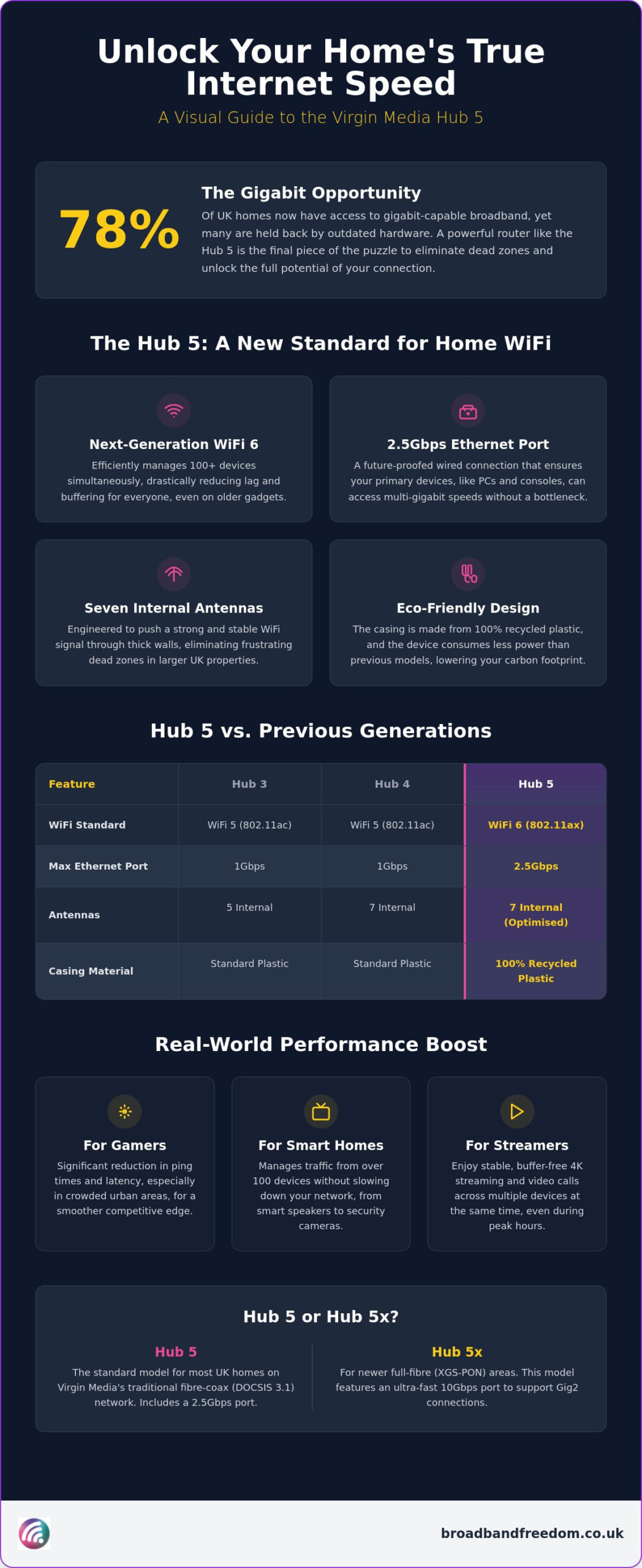
78% of UK homes now have access to gigabit-capable broadband, based on 2026 Ofcom data. Many homes still face dead zones and dropped video calls due to older hardware. You shouldn’t have to settle for a connection that fails when you move to the bedroom or start an important work call.
It’s a common frustration to pay for premium speeds only to find your current router cannot keep up with modern demands. Upgrading to the Virgin Media Hub 5 is often the key to the smooth home network you want.
Loading…
Achieving Seamless Connectivity
As lead industry analysts recently noted, “WiFi 6 is the biggest jump in home wireless stability in a decade.” This guide shows how the Virgin Media Hub 5 uses this technology to stop signal drops. It also explains how you can get an upgrade while lowering your monthly bills.
You’ll learn what makes this hub different from earlier models. It includes a 2.5Gbps port and seven internal antennas. These are listed in the official Virgin Media specifications. We will also reveal how to navigate the latest regulations regarding mid-contract price hikes.
Key Takeaways
- Learn how the Virgin Media Hub 5 uses WiFi 6 to handle heavy use. It supports 4K streaming and gaming on several devices at once.
- Identify the key hardware benefits. These include the 2.5Gbps Ethernet port. They also include the eco-friendly build from 100% recycled plastic.
- Compare performance benchmarks against older Hub 3 and Hub 4 models to see if an upgrade will solve your specific dead zone issues.
- Master the “loyalty department” strategy to secure your hardware upgrade for free whilst potentially lowering your monthly broadband costs.
- See how Virgin’s flagship router compares to the latest offerings from BT and Sky to help you decide if switching is your best move.
The Virgin Media Hub 5: A New Standard for UK Home WiFi
The virgin media hub 5 represents a significant upgrade for anyone using the provider’s cable network. It is the first flagship router from this UK telecommunications company to feature WiFi 6 as standard.
This hardware is designed specifically to handle the heavy data loads of Gigabit broadband plans. It ensures your home network remains stable even when several people are online at once.
Most older hubs struggle with the demands of 4K streaming and simultaneous gaming, but this model is built for the future.
Distinguishing the Hub 5 from the Hub 5x
It’s easy to get confused between the Hub 5 and the Hub 5x. The standard Hub 5 works with the traditional fibre-coax (DOCSIS 3.1) network found in most UK homes. If you live in a newer full-fibre area, you might receive the Hub 5x instead. Both models provide WiFi 6, but the 5x features a 10Gbps port for ultra-fast Gig2 connections.
The standard Hub 5 includes a 2.5Gbps port, which is perfect for future-proofing your wired devices. You can check your current internet speed to see if your legacy router is creating a bottleneck.
WiFi 6 Technology and Seven Internal Antennas
WiFi 6 (802.11ax) is the real star here. It handles data more efficiently amongst dozens of devices, from smart speakers to consoles. Instead of devices fighting for bandwidth, the hub manages them simultaneously. This reduces lag and improves speeds for everyone in the house. Seven internal antennas work to push this signal through thick walls and furniture.
This helps remove annoying dead zones in older or larger UK properties, ensuring a strong connection in every room.
Eco-Friendly Design and Power Efficiency
Sustainability is a key part of this router’s design. The casing is crafted from 100% recycled plastic, which is a massive step forward for consumer electronics. It also consumes less power than the older Hub 3 model.
This helps households lower their energy usage whilst supporting broader UK carbon reduction goals for 2026. You get a faster, more reliable connection without ignoring your environmental impact. It is a pragmatic solution for the eco-conscious consumer who refuses to compromise on performance.
Performance Comparison: Hub 5 vs Hub 4 and Hub 3
The virgin media hub 5 is a major leap forward from the Hub 3 and Hub 4 models. While older hubs use WiFi 5, this first Wi-Fi 6 router from Virgin uses 802.11ax.
It can handle over 100 smart home devices at once. The theoretical speed limit is the same with Gigabit plans.
You will notice the difference in real-world performance. The Hub 5 features a 2.5Gbps Ethernet port, whereas the Hub 4 is capped at 1Gbps. This means your wired hardware can finally access the full potential of your connection without bottlenecks.
Speed and Latency Benchmarks
Gamers will appreciate the significant reduction in ping times when switching to the newer hub. Average latency is lower because WiFi 6 manages signal interference more effectively in crowded urban areas.
If you are getting lag on video calls or while gaming, use the Broadband Freedom speed test. It will check your current speed. Transitioning from a Hub 3 to a Hub 5 often makes your connection more stable. Network congestion is usually highest during peak evening hours.
If your current contract feels sluggish, it might be time to compare the latest broadband deals to secure better hardware.
Why Older Devices Still Benefit
You don’t need a house full of brand-new gadgets to see an improvement. The Virgin Media Hub 5 is fully backwards compatible. It also manages traffic better, even for older WiFi 5 smartphones.
It uses advanced signal processing to ensure legacy devices don’t slow down the rest of your network. For power users who prefer professional-grade setups, the Hub 5 offers a reliable “Modem Mode.” This lets you turn off the hub’s built-in router and use your own mesh system.
You still benefit from the hub’s faster DOCSIS 3.1 processing. You can manage these settings and monitor your network health through the Virgin Media Connect App.
How to Secure Your Hub 5 Upgrade and Setup
Getting your hands on the virgin media hub 5 usually requires being on the Gig1 tier or a Volt package. Virgin Media is rolling out these units to existing customers with older Hub 3 or 4 models. This will happen throughout 2026. You can check your eligibility through the “My Virgin Media” portal.
However, don’t wait for an invite if your contract is ending. Proactive customers often get the best results by speaking directly to the provider. If you’re out of contract, you have the most leverage to request a hardware refresh.
Negotiating a Free Upgrade
Before you call, compare latest broadband deals to see what competitors are offering. Armed with this data, contact the loyalty department. Tell them you’re considering leaving because your current hardware isn’t performing.
Use a script like: “I’d like to stay, but I need the Hub 5 and I want the standard £35 setup fee waived as part of my renewal.” Mention that you’re reviewing your costs following the Ofcom rule change that requires price hikes to be stated in pounds and pence. This leverage often secures the hardware for free.
Installation and Understanding the Lights
Setting up the virgin media hub 5 is straightforward. Simply swap the coaxial cable from your old unit to the new one. Once powered on, the base light will cycle through different colours.
A flashing green light means it’s booting or downloading an update. Flashing blue indicates WPS pairing mode. You’re ready to go when the light turns solid white. Whilst waiting for the initial setup to complete, avoid turning the power off.
If it stays red or flashes green for over an hour, check the official Virgin Media help guides for service outages.
Optimising Your Signal
Ensure your hub is in an open space rather than tucked in a cupboard. You can use the Connect App to check if your 2.4GHz and 5GHz bands are balanced. This ensures older devices don’t clog the high-speed lanes meant for your consoles and 4K TVs. If you still have dead zones, the Hub 5 is compatible with Virgin’s WiFi Pods. These mesh extenders work seamlessly with the new router to push the signal into every corner of your property. This setup provides the most consistent experience for busy households.
Is the Hub 5 Enough? Comparing Virgin to BT and Sky
The Virgin Media Hub 5 faces strong competition from the BT Smart Hub 3 and the Sky Max Hub. This is because Ofcom’s “One Touch Switch” process makes switching providers easier than ever.
While all three offer WiFi 6, Virgin’s hardware often outperforms competitors in raw throughput during peak times. As digital infrastructure analyst Mark Thompson says, “The battle for the UK living room now depends on router efficiency. It is not just about line speed.” You can see how these bundles stack up by reviewing the latest Virgin Media deals.
Evaluating Long-Term Value and Perks
Hardware efficiency is only half the battle. The “Volt” partnership adds real financial value by combining mobile and home internet. According to government digital strategy reports, these bundled services are now standard for UK households. They help households manage rising costs.
For power users, the Virgin Media Hub 5 is still a strong choice. Its Modem Mode is more stable. Budget routers often have restricted firmware.
However, if you prefer complete autonomy, you might compare no-contract broadband deals instead. Virgin’s flagship provides a robust balance of performance and ecosystem benefits.
Take Control of Your Home Connectivity
Transitioning to a modern home network is about more than just speed; it’s about reliability across your entire property. The virgin media hub 5 provides the technical foundation needed for the high-density WiFi environments of 2026.
As independent tech consultant Sarah Jenkins notes, “A router is no longer just a box in the corner. It is the traffic warden for your digital life. WiFi 6 is an essential upgrade for any modern UK household.”
This hardware keeps your connection stable as you add more smart devices. It supports the UK Digital Strategy goal of nationwide gigabit connectivity.
Expert Guidance for Your Upgrade
Our team at Broadband Freedom is here to simplify the switching process and help you find the most competitive deals on the market. We provide daily updated offers and expert UK-based support to ensure you get the best hardware at a fair price. By comparing up to 30 providers using tools like the Ofcom broadband checker, you can gain leverage.
This can help you secure a Hub 5 upgrade without the usual mid-contract price hike stress.
Compare the latest Virgin Media deals and secure your Hub 5 upgrade today. Enjoy a faster, more resilient home network right away.
Frequently Asked Questions
Can I get the Virgin Media Hub 5 for free as an existing customer?
Yes, many existing customers on Gig1 or Volt plans are eligible for a free upgrade to the newer hardware. Virgin Media is contacting users with older Hub 3 or Hub 4 models throughout 2026.
They are offering replacement hubs. You can also check your specific eligibility through the “My Virgin Media” app or online account. If you are out of contract, use the upgrade to negotiate when you renew your deal. Ask them to waive any standard setup fees.
What is the difference between the Virgin Hub 5 and Hub 5x?
The primary difference lies in the specific network technology each unit supports. The standard Hub 5 is designed for the widespread DOCSIS 3.1 cable network found in most UK properties. In contrast, the Hub 5x is built for the newer XGS-PON full-fibre network. While both offer WiFi 6, the 5x model includes a more powerful 10Gbps Ethernet port. The standard unit features a 2.5Gbps port, which is still more than enough for current Gigabit home connections.
Does the Virgin Media Hub 5 support WiFi 6?
Yes, the virgin media hub 5 fully supports WiFi 6 (802.11ax) technology as its headline feature. This allows the router to handle fast data for dozens of devices at the same time. Older WiFi 5 hubs can become congested. It’s specifically engineered to provide more consistent speeds and lower latency for busy households. This is very useful for homes with lots of smartphones, consoles, and smart home gadgets.
They all need a stable connection.
How do I put my Virgin Media Hub 5 into Modem Mode?
You can enable Modem Mode by accessing the hub’s settings page through your web browser. Type 192.168.0.1 into your address bar and log in using the settings password found on the base of the unit. Navigate to “Modem Mode” in the side menu, select “Enable Modem Mode,” and save your changes.
This is a practical option if you want to use a high-end third-party mesh system. You can still benefit from the hub’s strong signal processing power.
Why is my Virgin Media Hub 5 light flashing blue?
A flashing blue light on your virgin media hub 5 indicates that the unit is currently in WPS pairing mode. This usually happens after you press the WPS button to connect a new wireless device without entering a password. The light will continue to flash for a few minutes while it searches for a compatible device.
Once pairing is successful, or the search times out, the base light should return to solid white. This shows a stable connection.
Related links
Virgin Media router guide 2026: Hub 3, 4 and 5 specs explained
Trouble shooting common issues with Virgin hub 5
Maximise your Savings: Your Ultimate Guide to 12 month Wi-Fi Contracts

Article by
Elaine Lang
Elaine has over 20 years across Marketing, Communications and Public Relations in the UK. She has worked across large UK corporations, including Commercial Banks and Airports, to online consumer finance and technology solutions. Elaine has post graduate qualifications in Marketing from the Chartered Institute of Marketing (CIM) and the Industry of Direct Marketing (IDM). She is a lifelong feline fan, sharing her home with around 4-6 cats for many years. This of course can be a challenge when trying to work at home, as they like to try to help!